Outlook Add-in
The superglue Outlook add-in opens the superglue agent as a side panel next to your email. The agent reads the email that is open, uses your superglue systems and tools, and writes reply drafts for you to review. The add-in works in Outlook on the web, new Outlook, classic Outlook for Windows, and Outlook for Mac.
What to expect
Section titled “What to expect”- Reads the open email. The add-in asks only for the Read item permission. The panel follows the email you select.
- Drafts, never sends. superglue writes drafts in your Drafts folder or in the email thread. You review them and send them from Outlook.
- Runs as you. You sign in with your superglue account. The agent can only use the systems, tools, and credentials that your account can access.
Get the add-in file
Section titled “Get the add-in file”Download the manifest from app.superglue.cloud/outlook/manifest.xml and save it as manifest.xml. Your superglue contact can also send you the file.
The file contains only links to superglue. It contains no keys or secrets, and it is the same for every organization.
Choose how to install
Section titled “Choose how to install”| Option | Who does it | Result |
|---|---|---|
| A. For your organization (recommended) | A Microsoft 365 administrator, in the Microsoft 365 admin center | superglue appears in Outlook for the users you choose. Users do not have to do anything. |
| B. For yourself | Any user, in Outlook. Your organization must allow custom add-ins. | superglue appears only in your own mailbox. |
Option A: install for your organization
Section titled “Option A: install for your organization”You must be a Global Administrator or an Exchange Administrator.
-
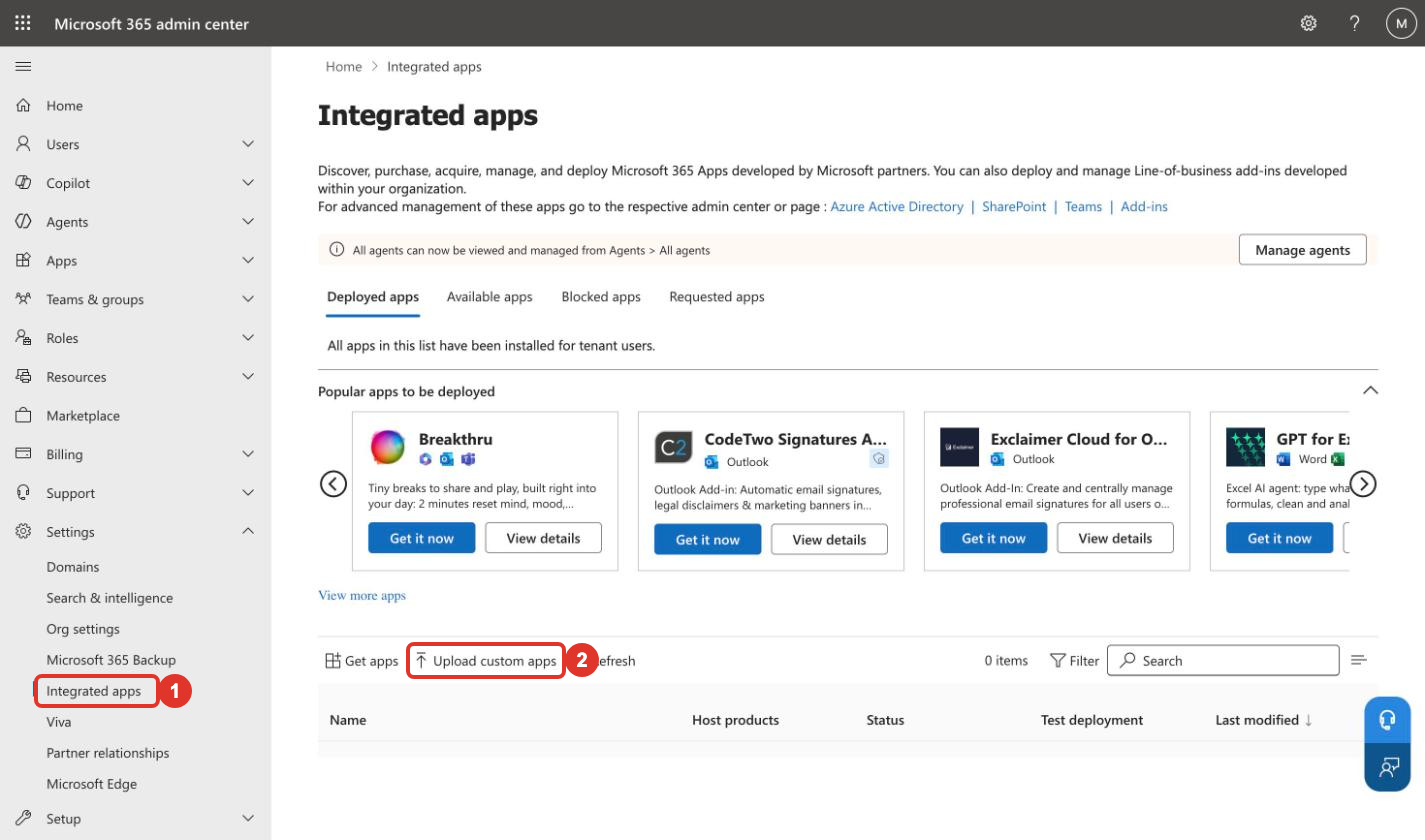
Open Integrated apps
Open the Microsoft 365 admin center at admin.microsoft.com. In the left menu, go to Settings → Integrated apps.
-
Upload the manifest
Click Upload custom apps.
-
Select the file
For the app type, choose Office Add-in. Choose Upload manifest file (.xml) from device and select
manifest.xml. Click Next. -
Choose the users
Choose Just me to test first, Specific users/groups, or Entire organization. Click Next.
-
Review the permissions
superglue asks only to read the email that is open (Read item). Click Next, then Finish deployment.
-
Wait for Outlook to show the add-in
This can take up to 24 hours. Users may have to sign out of Outlook and sign in again.
Option B: install for yourself
Section titled “Option B: install for yourself”-
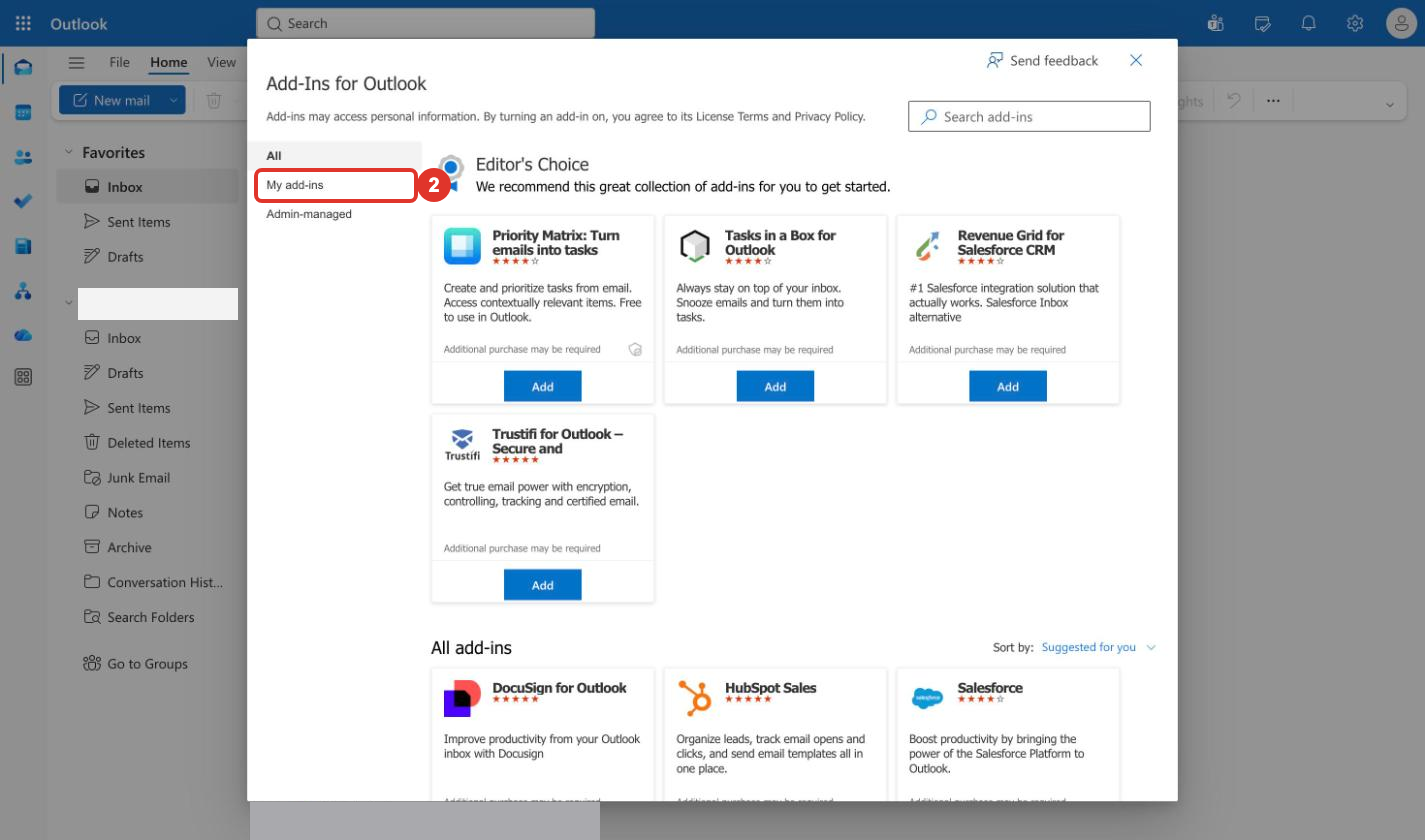
Open the add-ins window
In your browser, go to aka.ms/olksideload. Outlook opens the Add-Ins for Outlook window. In Outlook, you can also open it from Apps → Get Add-ins.
-
Open My add-ins
Click My add-ins.
-
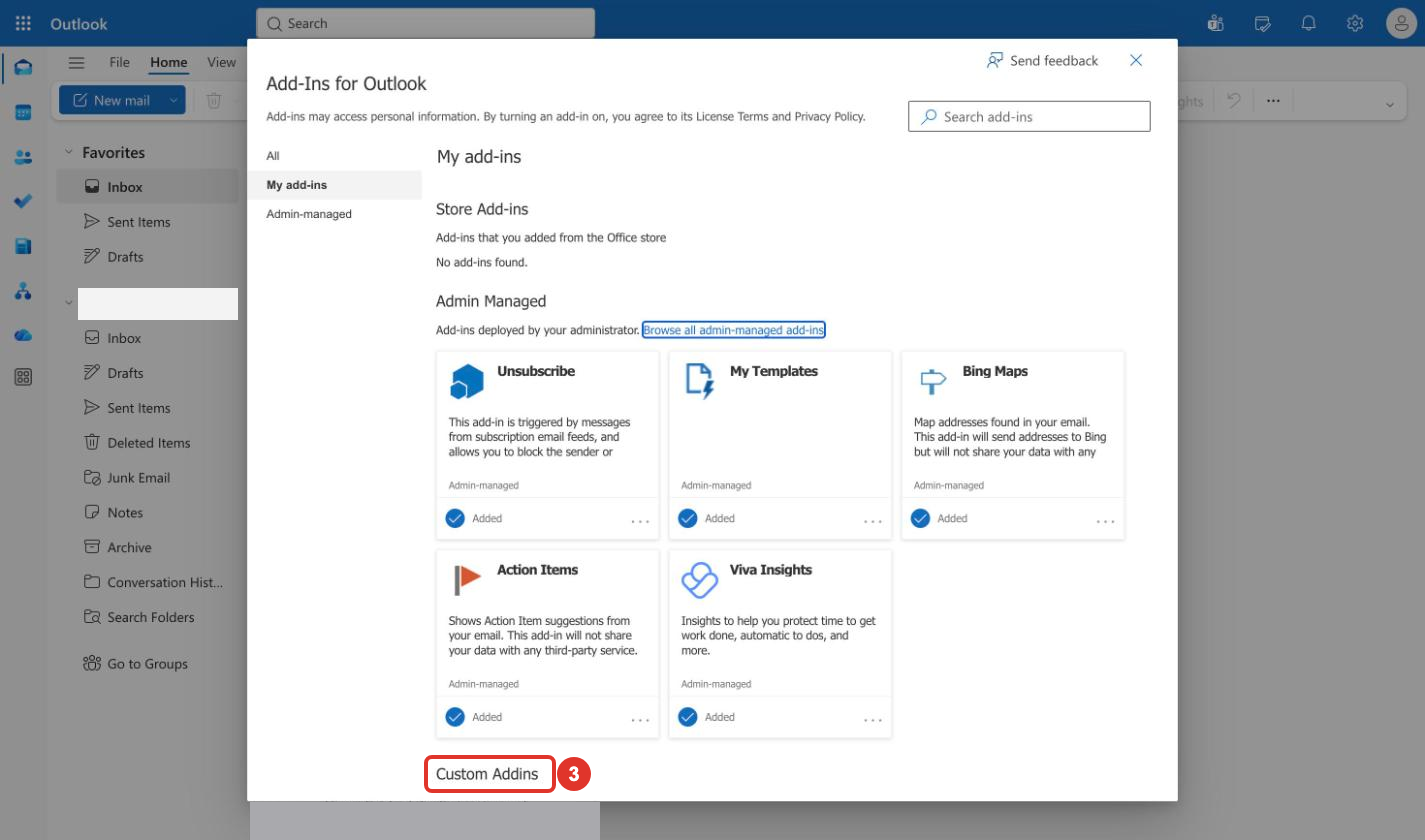
Find Custom Addins
Scroll down to Custom Addins.
-
Add the file
Click Add a custom add-in, then Add from File…. Select
manifest.xml.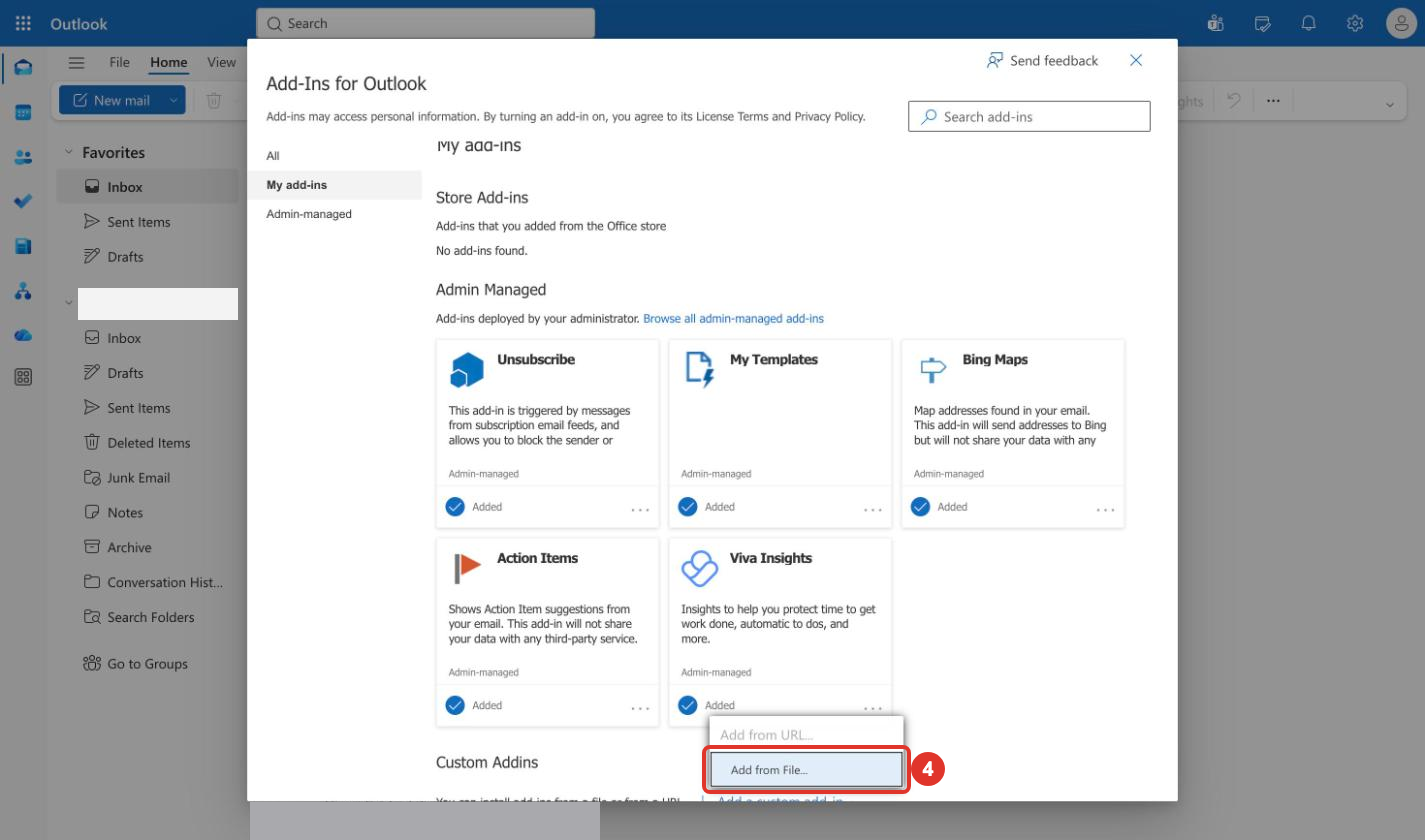
Your organization can disable Add from URL…. Use Add from File….
-
Install
Outlook shows a warning about custom add-ins. Click Install. superglue now appears under Custom Addins.
First use
Section titled “First use”Every user does these steps once.
- Open an email in Outlook. Click superglue in the toolbar. In Outlook on the web and new Outlook, it can be under Apps or the … menu.
- Click the pin icon at the top of the panel. The panel then stays open and follows the email you select.
- Click Sign in and sign in with your superglue account.
- When superglue asks, connect Outlook. superglue reads your mail and creates reply drafts through this connection.
Remove the add-in
Section titled “Remove the add-in”- For your organization. In the Microsoft 365 admin center, open Settings → Integrated apps, select superglue, and remove it.
- For yourself. In the Add-Ins for Outlook window, open My add-ins, find superglue under Custom Addins, and remove it.