Project context
The brain is everything superglue knows about your work. You connect your project context once, and every session can use it.
Before the agent can plan or execute an implementation well, it needs the same context you have. That includes what was agreed in the kickoff call, which spreadsheets the client sent, and what the target setup should look like.
What the brain holds
Section titled “What the brain holds”- Connected context: Systems the agent reads live, such as meeting notetakers, Slack or Microsoft Teams, Notion, Google Drive, SharePoint, Box, Gmail and Outlook.
- Files: Files you upload, in the Brain’s file drive or in a project’s folder, and the system documentation superglue saves in the Documentation folder. Legacy exports in Excel, CSV or XML belong here.
- Playbooks: Reusable methods that tell the agent how your firm runs a workstream.
- Artifacts: Reports, mapping proposals, questionnaires and spreadsheets the agent has produced.
Systems and tools are not context. They are capabilities, which means what the agent can do. They live under Capabilities in the sidebar.
Connect context sources
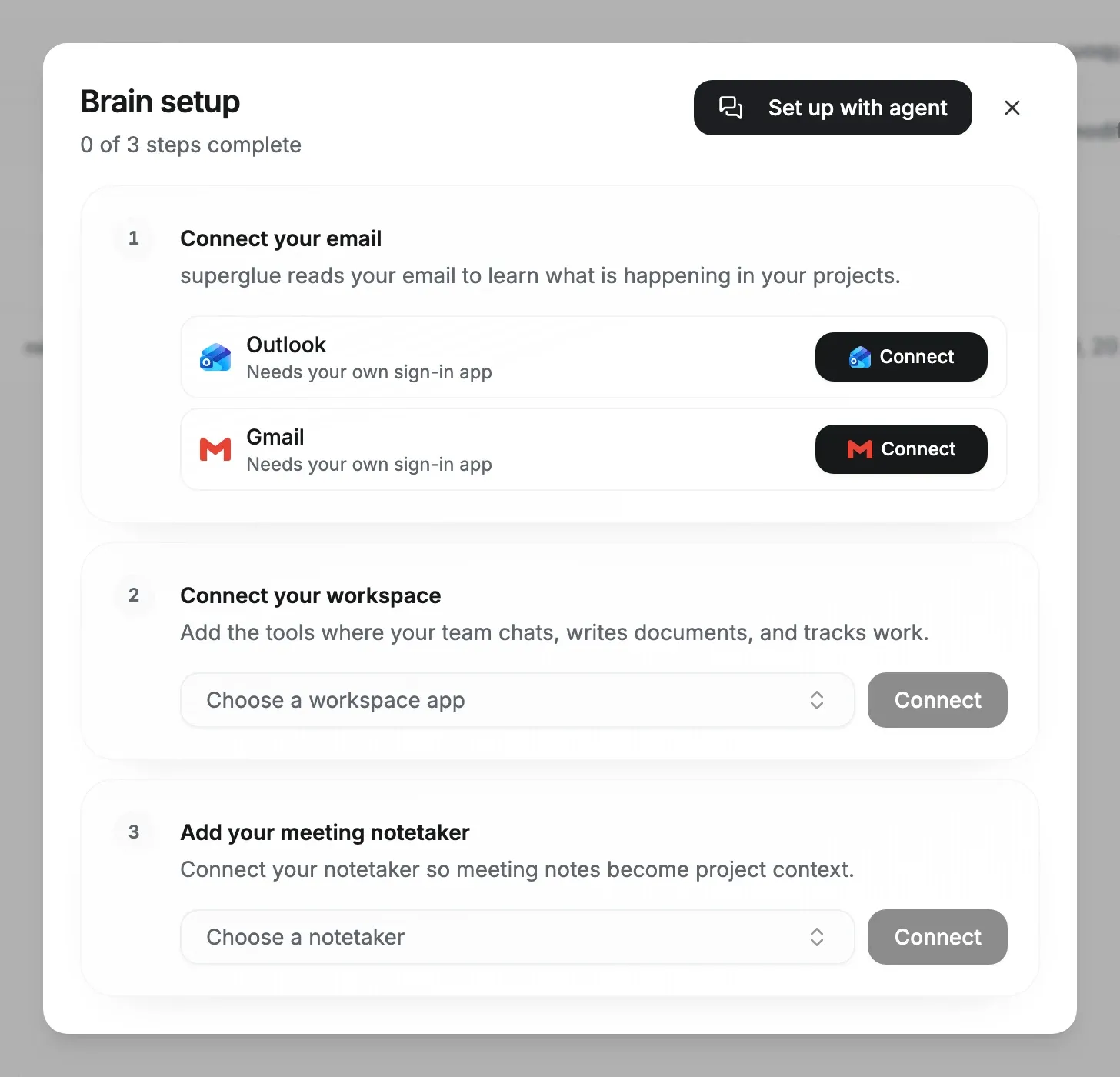
Section titled “Connect context sources”- Open Brain and click Setup (Set up brain until setup is complete).
- In the steps Connect your email, Connect your workspace and Add your meeting notetaker, choose a source and select Connect.
- Sign in with the provider and approve read access.
- Ask the agent a narrow question to confirm the connection, for example “What did we agree with Contoso about the chart of accounts?”
Supported notetakers are Circleback, Granola, Fireflies, Fathom, Fellow, Read AI and Otter. On superglue Cloud, Brain setup also adds the Microsoft Teams app. To read Zoom transcripts, see Zoom meeting context.
When a source shows Needs your own sign-in app, your deployment has no managed sign-in app for it. Connect then shows the setup steps first.
How the agent uses connected context
Section titled “How the agent uses connected context”In a session, the agent uses connected context only when it is relevant to the task.
Upload files
Section titled “Upload files”Uploaded files are parsed on upload, so the agent can read a legacy customer export in Excel the same way it reads an API.
Use a file in one session
Section titled “Use a file in one session”Drop files into the chat to use them in the current session. Keep one-off inputs and anything with secrets in the session.
Keep a file for the engagement
Section titled “Keep a file for the engagement”To keep a file for the whole engagement, upload it to the project’s folder under Brain or ask the agent to save it to the project. Everyone with access to the project can read its files.
Files uploaded to the brain are private to their owner, admins and explicitly permitted users.
Typical uploads for an implementation
Section titled “Typical uploads for an implementation”- Legacy system exports (customers, vendors, items, open transactions, balances)
- The client’s chart of accounts and dimension definitions
- Your firm’s mapping template and data-conversion checklist
- Statements of work and requirement documents
Organize engagements as projects
Section titled “Organize engagements as projects”Create a project for every implementation. Projects keep sessions focused on the client’s systems, files and tasks, and they give your team one place to track progress. See Project setup.